Low Vision Games
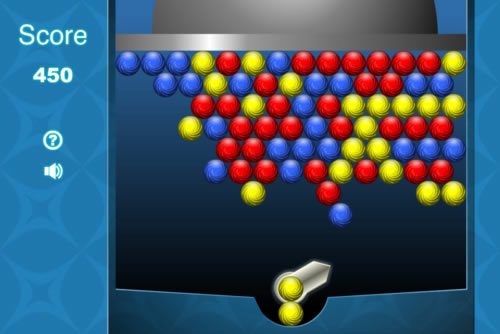
All Nanogames have large clear objects and the player setting can be used to further improve the game display for players with low vision.
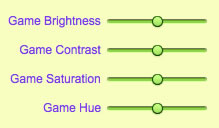
There are four values that can be changed - brightness, contrast, color saturation and hue. Use the Accessibility panel to change these values to alter the visual display of the games. These settings affect all the games
Brightness
While contrast is the most useful value, increasing contrast tends to initially bleach out the colors. Reducing the brightness slightly after adjusting the contrast will produce a more useful balance.
 Contrast
For low vision this is the most useful value to change. An increase in contrast can often ensure game objects are more clearly defined.
Saturation
If you increase the contrast, this also increases the color saturation causing everything to look glaringly bright. Reducing this value can overcome this.
Hue
This value changes the overall hue of the colors.